
Overview
To increase security and protect your account from cyber criminals, your account is required to have Multi-Factor Authentication (MFA) enabled.
Enabling MFA will also give you access to the Self Service Password Reset feature.
To help you setup MFA we have prepared this video guide. If you prefer, you can also scroll down and read the individual instructions.
What you will need
You will need your mobile phone to receive the SMS message.
You will also need to know your RAAFA email account and password.
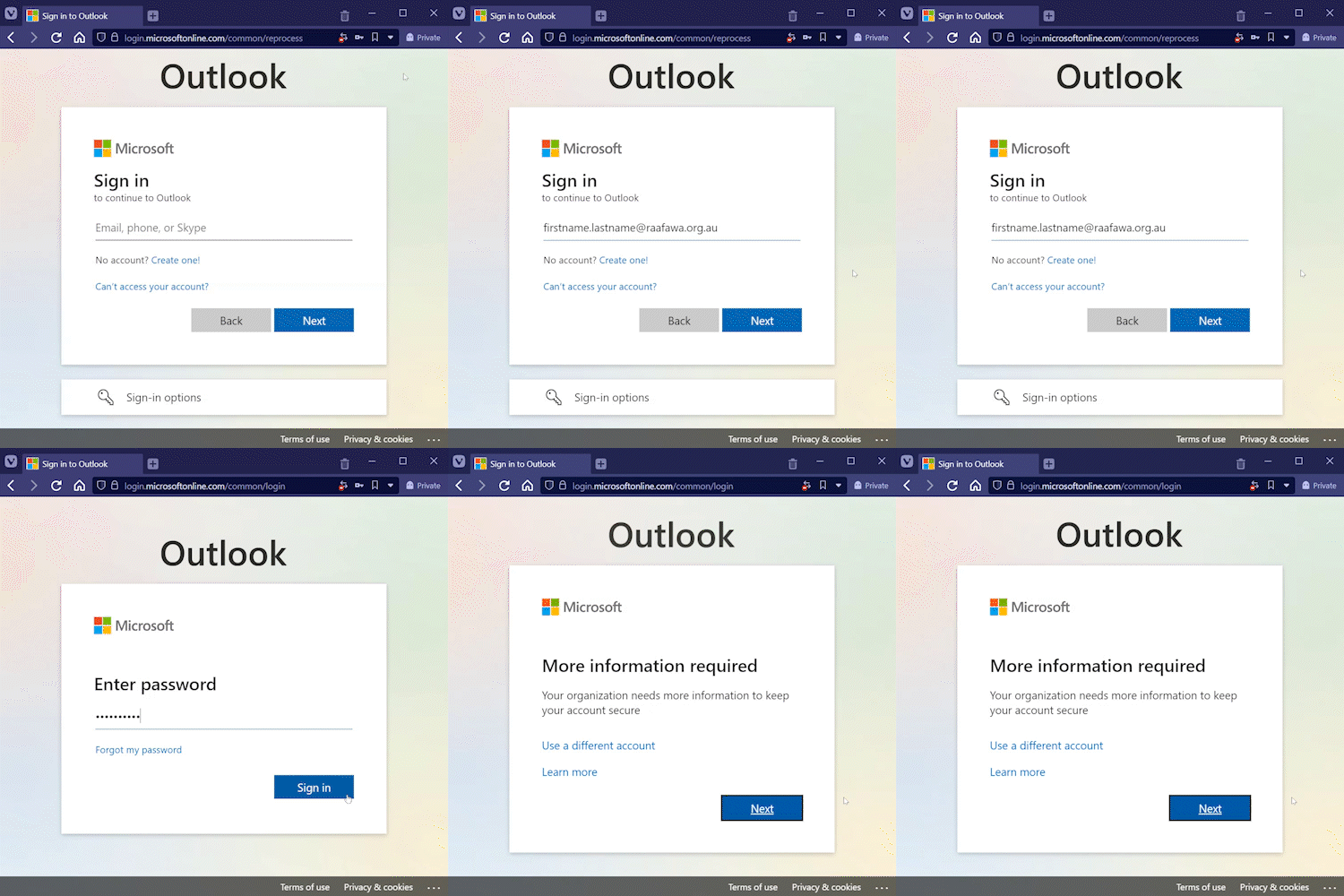
Lastly you will need to be on the "More information required" screen. You can get there by following these prerequisite steps:
- Go to https://outlook.office.com
- Sign in using your RAAFA email account and password
- You should encounter a screen that says "More information required"
How to set up MFA for your account
Please note, these are the same instructions covered in the video above
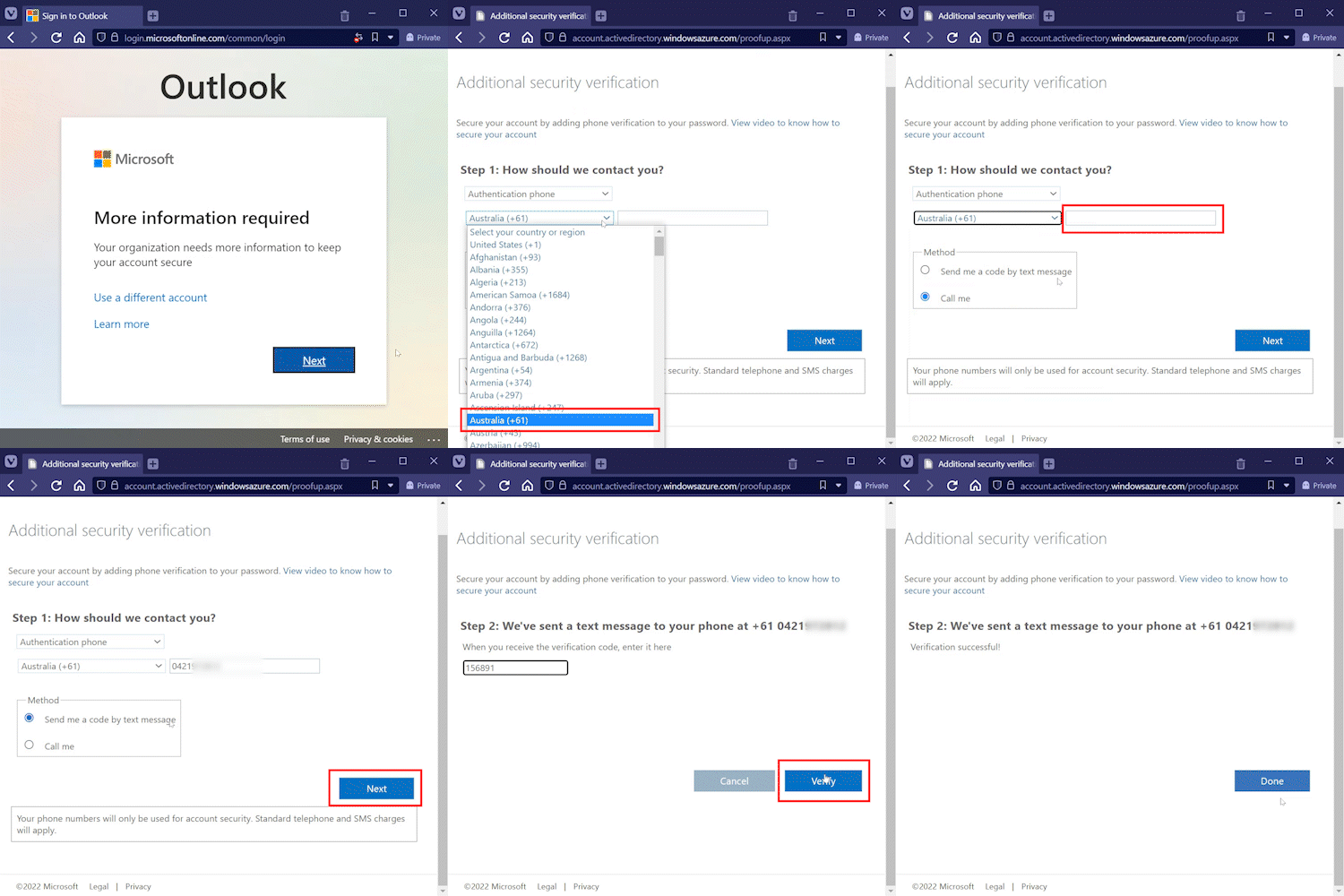
- In the "Select your country or region" drop down menu, select "Australia (+61)"
- Enter your mobile phone number
- In the Method area, choose "Send me a code by text message"
- Select Next to begin verifying your phone number
- You will receive an SMS message. Enter the code you received and then choose Verify
You will then see the "More information required" message a second time - Click the Verify button. Your mobile number should already be filled in the box
- Click the "text me" button
- You will receive an SMS message. Enter the code you received and then choose Verify
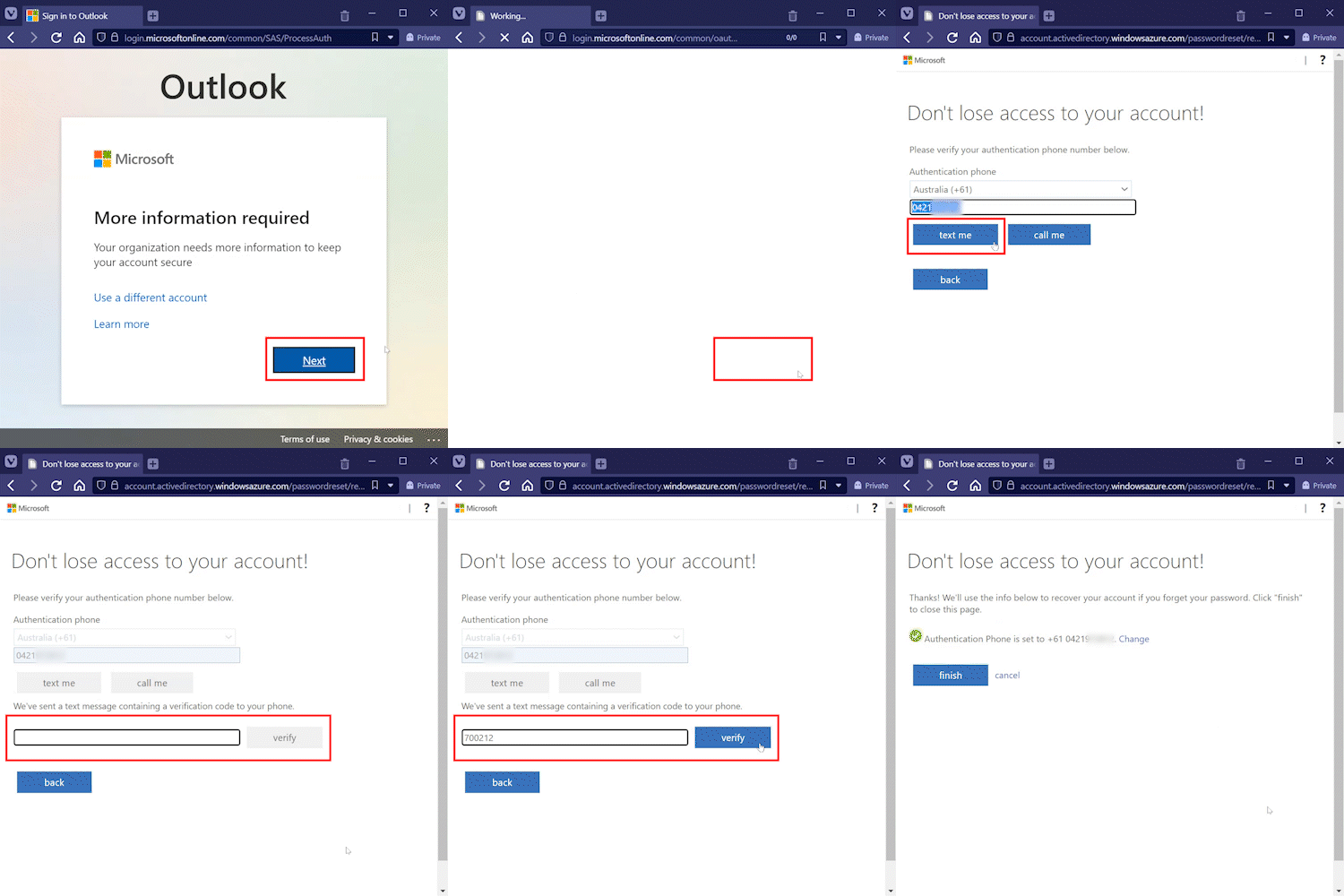
- You should see a green tick indicating the steps are complete.
- Click finish to exit and return to Outlook
Troubleshooting
- If you are following these steps on a mobile phone, you may need to zoom out (pinch to zoom with your fingers) in order to see all of the text and buttons on the screen
- The SMS codes from Microsoft will generally send in under 30 seconds
- For any issues please contact IT help desk on 9551 7761
asd
Comments
0 comments
Please sign in to leave a comment.